How to Download and Install iOS 18 Free with 5 Easy Ways
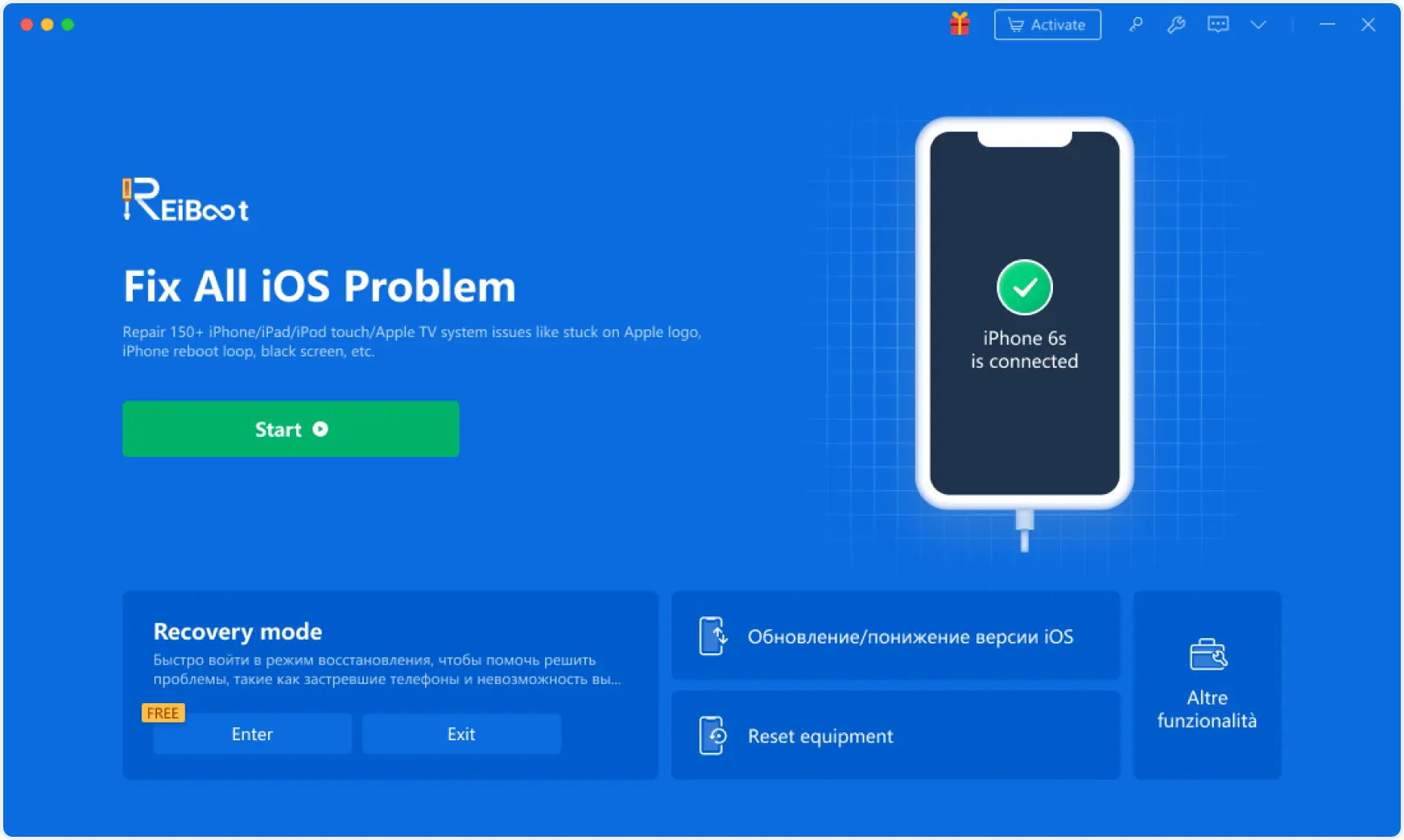
If your device is not working properly and you are facing critical issues, Recovery Mode is here to help. Sending your iPhone into Recovery Mode can fix many issues. Furthermore, it also helps the PC to easily connect with your iPhone. Other than that, it performs various functions, including data cleaning, installing updates, restoring your data, and much more. However, it is recommended to backup your data before you use the Recovery Mode Feature.
Way 1: [Official] Download iOS 18 Profile Free via Software Update
Now iOS 18 is available. You can download iOS 18 now through your iPhone software update. Additionally, if you want to update to iOS 18 public, you should update to the most recent version of iOS 17 (currently 17.5.1) firstly, and then make a backup of your device. You can also choose Tenorshare ReiBoot for iOS upgrade. Here's how to download iOS 18 through software update:
Standard Repair: Fix iOS Stuck Issues without Data Loss
-
Download and Install ReiBoot on PC or Mac
It is troublesome for users to get the iPhone into recovery mode manually, especially when the home button not working properly.

-
Click 'Standard Repair' to Proceed
In the below interface, select 'Standard Repair' and read the note below to avoid repairing process failure. If you're ready, click 'Standard Repair'.
-
Video Guide: How to Enter Recovery Mode with 1 Click
列表样式
Now iOS 18 is available. You can download iOS 18 now through your iPhone software update. Additionally, if you want to update to iOS 18 public, you should update to the most recent version of iOS 17 (currently 17.5.1) firstly, and then make a backup of your device. You can also choose Tenorshare ReiBoot for iOS upgrade. Here's how to download iOS 18 through software update:
- Make sure your hard drive is connected to your computer, whether external or internal. Press the Windows key + X and select "Disk Management" from the list.
- Deep Repair: Fix iOS System Issues with a Higher Success Rate.
- Deep Repair: Fix iOS System Issues with a Higher Success Rate.
- Make sure your hard drive is connected to your computer, whether external or internal. Press the Windows key + X and select "Disk Management" from the list.
- Deep Repair: Fix iOS System Issues with a Higher Success Rate.
- Deep Repair: Fix iOS System Issues with a Higher Success Rate.
- Make sure your hard drive is connected to your computer, whether external or internal. Press the Windows key + X and select "Disk Management" from the list.
- Deep Repair: Fix iOS System Issues with a Higher Success Rate.
- Deep Repair: Fix iOS System Issues with a Higher Success Rate.
- 加粗样式: Make sure your hard drive
- 下划线样式:下划线样式
- 删除线样式:删除线样式
- 波浪线样式:波浪线样式
- 高亮显示样式:颜色样式
表格样式
Now iOS 18 is available. You can download iOS 18 now through your iPhone software update. Additionally, if you want to update to iOS 18 public, you should update to the most recent version of iOS 17 (currently 17.5.1) firstly, and then make a backup of your device. You can also choose Tenorshare ReiBoot for iOS upgrade. Here's how to download iOS 18 through software update:
 Please swipe to view
- Your device is not compatible with the is not compatible with theYour device is not compatible with the is not compatible with the
- Your device is not compatible with the is not
- Your device is not compatible with the is not
- Your device is not compatible with the is not
- Your device is not compatible with the is not compatible with theYour device is not compatible with the is not compatible with the
- Your device is not compatible with the is not
- Your device is not compatible with the is not
- Your device is not compatible with the is not

To repair iOS system successfully, it's highly recommended that you connect the iOS device to the computer using the Apple original lightning USB cable.

To repair iOS system successfully, it's highly recommended that you connect the iOS device to the computer using the Apple original lightning USB cable.

To repair iOS system successfully, it's highly recommended that you connect the iOS device to the computer using the Apple original lightning USB cable.

To repair iOS system successfully, it's highly recommended that you connect the iOS device to the computer using the Apple original lightning USB cable.

To repair iOS system successfully, it's highly recommended that you connect the iOS device to the computer using the Apple original lightning USB cable.

Tutorial video
Watch the video guide to see when can you download iOS 18 & how to download iOS 18 free.





Try Tenorshare PDNob Now!
Edit a PDF in a few simple steps